About Setting Items
Basic Settings
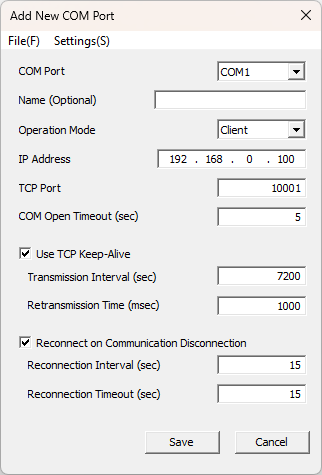
Configure the basic settings for the virtual COM port.
Click the [Add] button on the main screen, or select [Settings] -> [Add] from the menu to display the "Add New COM Port" screen.
To change the settings of an existing virtual COM port, click the [Edit] button on the main screen, or select [Settings] -> [Edit] from the menu to display the "Edit COMx" screen. You can also display this screen by double-clicking the target virtual COM port in the list on the main screen.
Click [Save] after configuring to apply and save the settings.
Click [Cancel] to discard the changes.
-
Menu Bar: The menu at the top of the screen allows for the following operations:
-
File
- Import Settings: Loads settings from a file and reflects them on the configuration screen.
-
Export Settings: Saves the settings currently entered on the configuration screen to a file.
For details, refer to Saving and Loading Settings.
-
Settings
-
Advanced Settings: Configures advanced operational settings for the virtual COM port. For details, refer to Advanced Settings.
-
Allow Firewall Port
- Add: Adds the server mode TCP port number entered on the configuration screen to the allowed ports.
- Delete: Removes the server mode TCP port number entered on the configuration screen from the allowed ports.
- List: Displays a list of ports allowed by the Windows Firewall. For details, refer to List of Firewall Allowed Ports.
Firewall Allowed Ports
If the TCP port used in server mode is not registered in the Windows Firewall allowed list, connections from the SI series may be blocked. After configuring the TCP port for server mode, add it to the Windows Firewall allowed list as necessary.
-
-
-
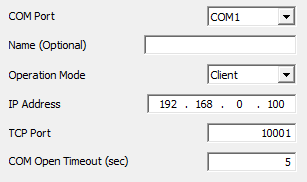
COM Port
Select the virtual COM port number. Only currently available port numbers are displayed here. This can only be set during addition and cannot be changed after creation. -
Name (Optional)
You can freely enter a name for identification that will be displayed in the list on the main screen. -
Operation Mode
Select the operation mode for SI-VCP.- Client: Select when the SI series main unit is configured as a "Server."
- Server: Select when the SI series main unit is configured as a "Client."
-
IP Address (Client mode only)
Enter the IP address of the target SI series main unit. -
TCP Port
Enter the TCP port number of the SI series main unit used for connection or listening. -
COM Open Timeout (Client mode only)
Sets the time the application waits for the connection to the SI series unit to complete after opening the COM port.
If the connection is not completed within this time, the COM port open operation will fail.
If opening fails due to a slow connection, increase this value to adjust.
(Default: 5 seconds, Maximum: 10 minutes)
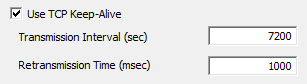
- Use TCP Keep-Alive
A function to periodically check the survival of the communication path.
When checked, a TCP keep-alive signal is sent to the connected SI series main unit.
If there is no response to the TCP keep-alive signal, communication with the SI series unit is disconnected.- Transmission Interval
Enter the interval for sending TCP keep-alive signals.
(Default: 2 hours, Maximum: 2 hours) - Retransmission Time
Enter the wait time before retrying if there is no response.
(Default: 1 second, Maximum: 30 seconds)
- Transmission Interval
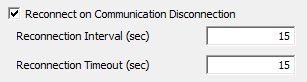
- Reconnect on Communication Disconnection (Client mode only)
A function to automatically attempt reconnection when communication disconnection with the SI series unit is detected.
This allows for reconnection without manual user operation in the event of an unintended disconnection.
Check this to enable reconnection.- Reconnection Interval
Enter the wait time after disconnection detection before starting the reconnection process.
(Default: 15 seconds, Maximum: 1 hour) - Reconnection Timeout
Enter the time to wait for reconnection to complete after it has started.
(Default: 15 seconds, Maximum: 10 minutes)
- Reconnection Interval
Advanced Settings
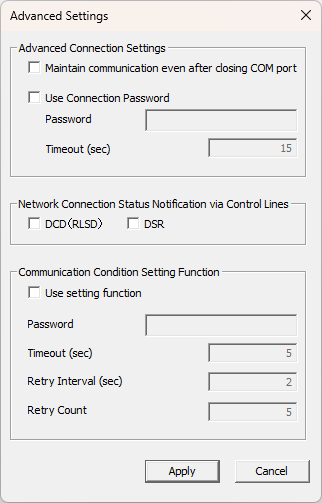
Configure advanced operational settings for the virtual COM port.
Click [Settings] -> [Advanced Settings] from the menu of the "Add New COM Port" or "Edit COMx" screen to display the "Advanced Settings" screen.
Click [Apply] after configuring to reflect the settings.
Click [Cancel] to discard the changes.
-
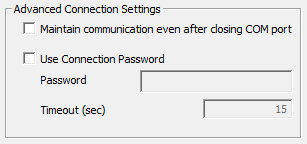
Maintain communication even after closing COM port
A function to keep the network communication with the SI series unit active even if the COM port is closed on the application side. Check this to enable it.
Data received while the COM port is closed will be transferred to the application the next time the COM port is opened.
To disconnect communication when this function is enabled, use [Tools] -> [Disconnect Socket] from the menu on the main screen. -
Use Connection Password (Client mode only)
Used when a communication password is set on the target SI series main unit. When checked, password authentication is performed at the start of the connection. For details, refer to the instruction manual of the SI series unit.-
Password
Enter the password configured on the SI series main unit. -
Timeout
Enter the wait time for authentication to complete.
(Default: 15 seconds, Maximum: 10 minutes)
-

- Network Connection Status Notification via Control Lines
A function to notify the application of the network connection status with the SI series main unit as a change in the state of the virtual COM port control lines (DCD/DSR).
For details, refer to Network Connection Status Notification via Control Lines.- DCD (RLSD) / DSR
Check the control lines you want to use for notification.
- DCD (RLSD) / DSR
-
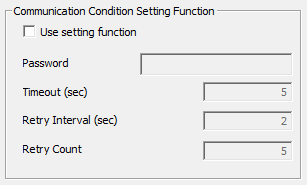
Communication Condition Setting Function
A function to automatically set the serial communication conditions of the SI series main unit to match the conditions used when the application opens the virtual COM port.
For details, refer to Communication Condition Setting Function.-
Use setting function
Check this to enable the function. -
Password
Enter if a configuration password is set on the SI series main unit.
Leave blank if no password is set. -
Timeout
Enter the time to wait for a response to the setting.
(Default: 5 seconds, Maximum: 10 minutes) -
Retry Interval
Enter the time to wait before retrying after a timeout.
(Default: 2 seconds, Maximum: 1 hour) -
Retry Count
Enter the number of retry attempts.
(Default: 5 times, Maximum: 100 times)
-
List of Firewall Allowed Ports
Displays a list of TCP ports allowed by the Windows Firewall for use by SI-VCP while listening in server mode.
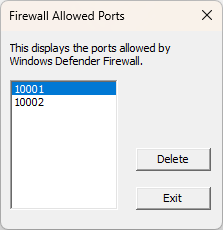
Click [Tools] -> [List of Firewall Allowed Ports] from the menu on the main screen to display the "List of Firewall Allowed Ports" screen.
Or you can display the same screen by clicking [Settings] -> [Allow Firewall Port] -> [List] from the menu of the "Add New COM Port" or "Edit COMx" screen.
-
Port List
Displays the allowed TCP port numbers. -
Delete Button
Removes the firewall allow setting for the selected TCP port. -
Exit Button
Exits and closes the screen.
About Firewall Allowed Ports
From a security perspective, it is recommended to remove TCP ports that are no longer used by virtual COM ports from the Windows Firewall allowed settings.